Common format
JPG / JPEG
The most common format for photographic Pinterest images, provided when detected from the source Pin.
Paste your Pin link, find the image, and save it in seconds.
Download Pinterest Image
Paste link · click Find Image · save the result

Pinterest Image Downloader is a browser-based tool for finding an available image from a public Pinterest Pin. Copy the link to an individual Pin, paste it into the tool, and select the image file shown in the result.
You do not need to install an application, APK, desktop program, or browser extension. The tool can be opened through a supported browser on Android, iPhone, iPad, Windows, macOS, and other compatible devices.
The available image depends on the original Pin. The downloader does not improve image resolution, remove ownership information, or provide permission to reuse another creator's work.
The tool needs the URL of an individual Pin. A board, profile, search page, or home-feed link may not identify one specific image.
Copy the individual Pin link — open Pinterest and select the image Pin you want to save. On a mobile device, open the Share menu and choose the Copy link option; on a desktop computer, open the individual Pin and copy its complete URL from the browser address bar. Do not copy the website address linked inside the Pin — that address may lead to a blog, product page, or another external website rather than the Pinterest media page.
Paste the link into the tool — return to the Pinterest Image Downloader and paste the copied URL into the input field. Check that the link does not contain additional words or punctuation, then select Find Image to process it.
Review the available image — when a supported public image is detected, the result section may show a preview, file format, image dimensions, or download button. The displayed information comes from the actual file rather than a promised resolution or format before checking the Pin.
Save the image — select Download Image. Your browser may save the file automatically, ask you to choose a folder, or open the image in a new tab. When an image opens in a browser tab, use the browser's save control or press and hold the image on a compatible mobile device.
The tool should not ask for Pinterest account credentials. It is not designed to bypass private boards, restricted accounts, or other access controls.
The downloader returns an image file detected from the public Pin — it does not convert the image into another format unless a genuine, tested conversion process is in place.
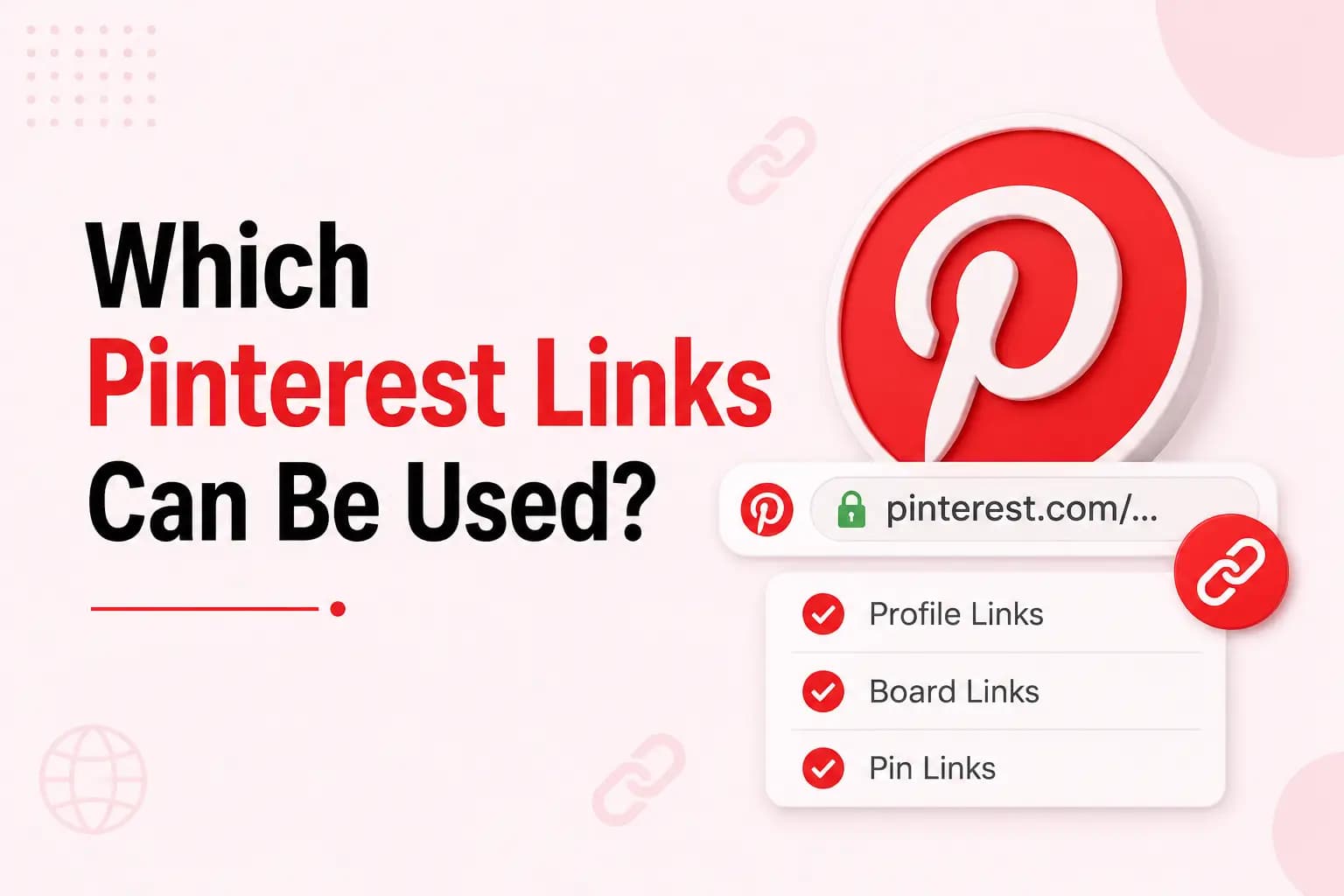
The tool is intended for publicly accessible individual Pin links. Links that may be supported include:
Pinterest images may be delivered in different formats depending on the source and Pinterest's media system.
The most common format for photographic Pinterest images, provided when detected from the source Pin.
Used for images that include transparency or sharp graphic elements, when available from the source.
A newer, efficient image format some Pinterest media is delivered in, when supported by the source and your browser.
Some Pins may include an animated image format — this is only shown as a result when the source Pin and the tool's processing both support it.
The following links may not work:
Pinterest board links
Profile links
Search-result URLs
Home-feed links
Private Pins
Deleted Pins
Login-restricted content
Region-restricted content
External destination URLs
Incomplete links
Copy the individual Pin link from the Pinterest application, then open the image downloader in your browser.
Copy the individual Pin link from the Pinterest application.
Open the image downloader in your browser, paste the link, and select the available image result.
Find the file in the Downloads folder, browser download history, Files application, or Gallery — the location depends on your browser and phone settings.
Paste the individual Pin URL into the tool and select the available image.
Paste the individual Pin URL into the tool and select the available image.
Most browsers place the file in the Downloads folder unless you have selected another location.
When the image opens in a tab instead of saving, right-click it and use the browser's supported save option.
Open the image Pin, copy its link, and paste it into the tool through Safari or another supported browser.
Open the image Pin, copy its link, and paste it into the tool through Safari or another supported browser.
Select the available image result to save it.
Find the image in Safari's downloads or the Files application — to place it in Photos, open the downloaded file and use an available Save Image option.
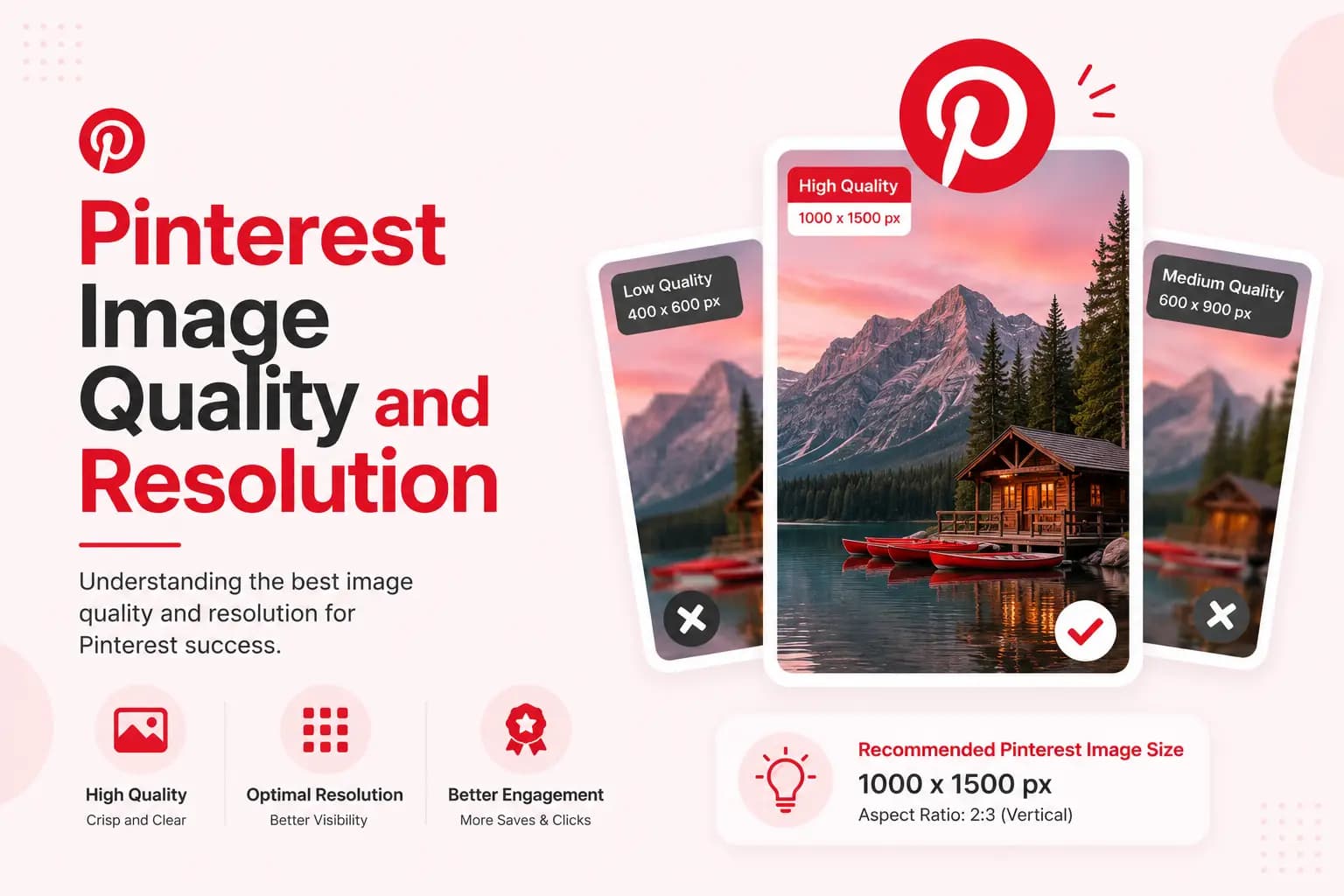
The quality of a downloaded Pinterest image depends entirely on the version available from the source Pin — this tool explains these limits rather than claiming to improve image quality.
The tool cannot recreate detail that has already been compressed or removed. A small or blurry image will not become a genuine high-resolution image simply because it has been downloaded again.
When more than one image size is available, the result page may show separate options, each displaying its actual dimensions rather than labels such as “ultra quality” or “maximum HD.”
Image quality can be affected by:
A failed download does not always mean the tool is broken — start by checking the link and the availability of the original Pin.
The wrong link was copied: a board, profile, home-feed, or external website link may not provide the required Pin information — open the individual image Pin and copy its direct URL again.
The Pin is private or restricted: the downloader cannot open a Pin that requires private access, an invitation, account permission, or another restriction.
The image is no longer available: the Pin may have been deleted, hidden, or changed by its creator — open the source URL directly to check whether the image still appears.
The file opens instead of saving: some browsers display image files in a new tab — use the browser's download option, Save Image control, or long-press menu.
The downloaded image looks small: the Pin may provide only a compressed or resized version, and the downloader cannot restore an unavailable original file.
A temporary error appears: try the direct Pin link again — a temporary platform change, server issue, browser extension, or network problem may interrupt processing.
This page explains how submitted URLs and media files are handled, rather than relying on absolute claims such as “completely anonymous,” “nothing is stored,” or “100% secure.”
A submitted Pinterest link is processed only to locate the available image connected to that Pin. Further details on retention and handling are available in our Privacy Policy.
A publicly visible Pinterest image is not automatically free to reuse.
Do not republish, sell, alter, or distribute another person's image without the required permission. Saving a file does not transfer its copyright to you.
This website is an independent tool and is not affiliated with, endorsed by, or sponsored by Pinterest.
Download an image only when:
You created it
You own the required rights
The creator has given permission
A valid licence allows the download and intended use
Applicable law otherwise permits your use
A useful tool page should explain both what the service can do and where it may fail.
A useful tool page should explain both what the service can do and where it may fail.
Public Pins only
Board and profile links may not work
Image quality depends on the source
Private and deleted media cannot be accessed
Not every image format may be supported
Browser saving behaviour can vary
Downloading does not grant reuse rights
Pinterest Image Downloader helps users check an individual public Pin for an available image file. Paste the correct Pin link, review the detected result, and save the file through your browser.
Image format and quality depend on the source. The tool does not access private content, improve resolution, or provide permission to reuse another creator's image.
Quick answers to the most common questions about finding and saving Pinterest images.
Copy the individual public Pin link, paste it into the image downloader, select Find Image, and save the available result.
Yes, when the Pin and browser are supported. The file may appear in Downloads, Files, Photos, or Gallery depending on the device.
Not unless board downloading has been separately developed and tested. The image tool normally needs an individual Pin link, not a board link.
It returns an available source version. The result may not be the creator's original upload, and the tool cannot restore unavailable detail.
Only when format selection or conversion has been technically implemented. Otherwise, the detected source format is provided.
No. The tool does not bypass privacy controls or account restrictions.
Yes — you can complete the normal download process without payment or a required subscription.
Only when you own the image, have permission, hold a suitable licence, or applicable law permits the intended use.